Checks and results
Choosing the method#
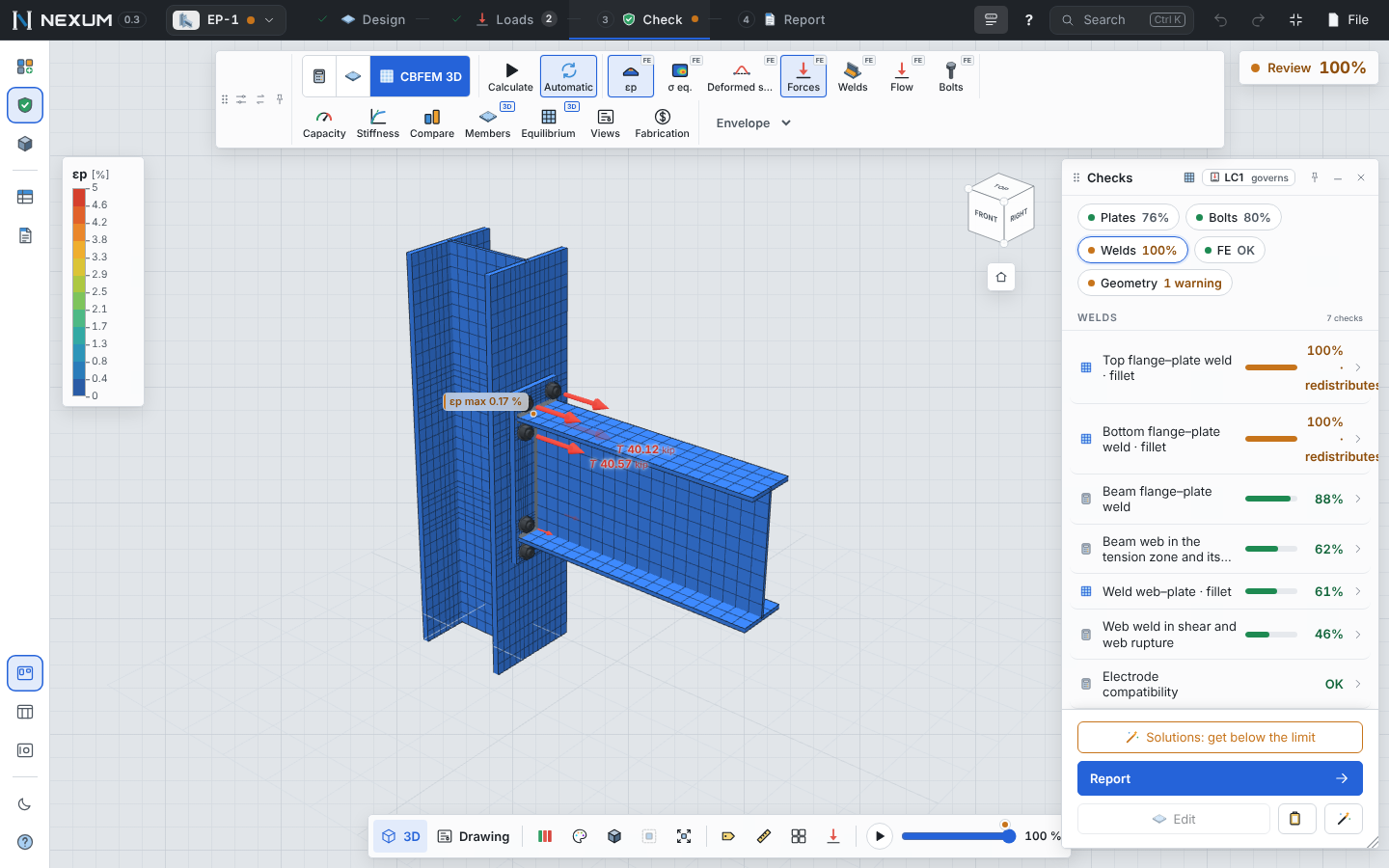
In the Check stage the toolbar shows the Method:
| Method | What runs | Available for |
|---|---|---|
| Analytical | The code and design-guide checks only. Instant. | Every template |
| FE plate | Analytical + a 2D finite element model of the main plate alone (bolts and supports as springs). 1–3 s. | Base plate, shear tab, end plate, gusset plate |
| CBFEM 3D | Analytical + a 3D shell model of the whole connection: members, plates, welds, bolts, contact, concrete. | Base plate, shear tab, end plate, welded moment, truss plate joint, column with beams and braces, free joint |
Automatic recalculates the FE model whenever the data change (otherwise F5). A pill shows the progress and lets you cancel. With five or more load cases the FE runs only on the cases that can govern.
Reading the Checks window#
- Verdict — Pass (green), Review (orange, above 95% or with detailing notes) or Fail (red), followed by the governing utilization, the check and the case. The top of the scale is shown as ">300%".
- Source and case — which method the numbers come from and which case is shown (Envelope = the worst of all cases for each check).
- Group chips — Plates, Bolts, Welds, Anchors, Concrete, Column, Buckling, Seismic, Geometry, Analysis. Click to filter the list and highlight the pieces in 3D.
- List — what · bar · %. Click a check to open it.
- Footer — the next stage, Edit (jumps to the operation that controls the check), copy specification, and the wand (Optimize / Solutions).
A check, opened#
Every check is written the same way: symbol = formula = substitution = result, its code reference, its utilization and the case that governs. The tabs:
- Step by step — numbered steps with name, formula, substitution with the real values, the demand of the case and ✓/✗.
- Result only — the short version.
- Assumptions — what the method takes for granted.
- To lower it — which value moves this check.
For the shear tab, the failure plane (Anv, Agv, block shear) is drawn in red on the model. See in report opens the report at that check.
Not every line is a utilization#
Classifications and detailing notes are not utilizations (thick or thin plate, compact section, minimum edge, maximum fillet): they show OK or a warning, never a percentage. A clash between pieces is Fail · Clash.
Warnings#
A ⚠ badge next to an operation in the tree (and in the status widget) counts its notes. Click it for each note and its fix. General notes and assumptions are in Tools → Messages.
Forces the analytical method ignores, pieces it does not distribute load into, and elements no method fully checks are always reported — so you know what the hand checks did not see.
FE results#
With an FE result, the toolbar shows:
- Plastic strain (εp) — bands of equivalent plastic strain with the 5% limit marked on the legend.
- Stress (σ) — von Mises stress with φFy marked.
- Deformed shape — scaled automatically (maximum displacement = 6% of the model diagonal) with the undeformed outline dashed; ¼× to 4× of the automatic scale.
- Forces and welds — force per bolt as arrows, force per unit length along each weld.
- Elements — a split view: on the right, the table of every plate and member wall (t, σEd, εp, φFy, status against 5%); below it the selected element in 2D with its bands, mesh, numbered bolts with T and V, and the maximum. Click any plate in 3D to select it.
- Load step — scrub through the increments of the nonlinear solution.
The mesh is visible by default, with 12 bands and the value at each band boundary, as in IDEA StatiCa.
Studies#
| Tool | What it shows |
|---|---|
| Bolts / Anchors | Tension and shear in each bolt (FE or analytical), φRn and the J3.7 interaction (anchors: ACI 318 §17.8). Click a row to highlight the bolt. |
| Welds | Force per unit length along each weld (FE) against φRn, average and peak. |
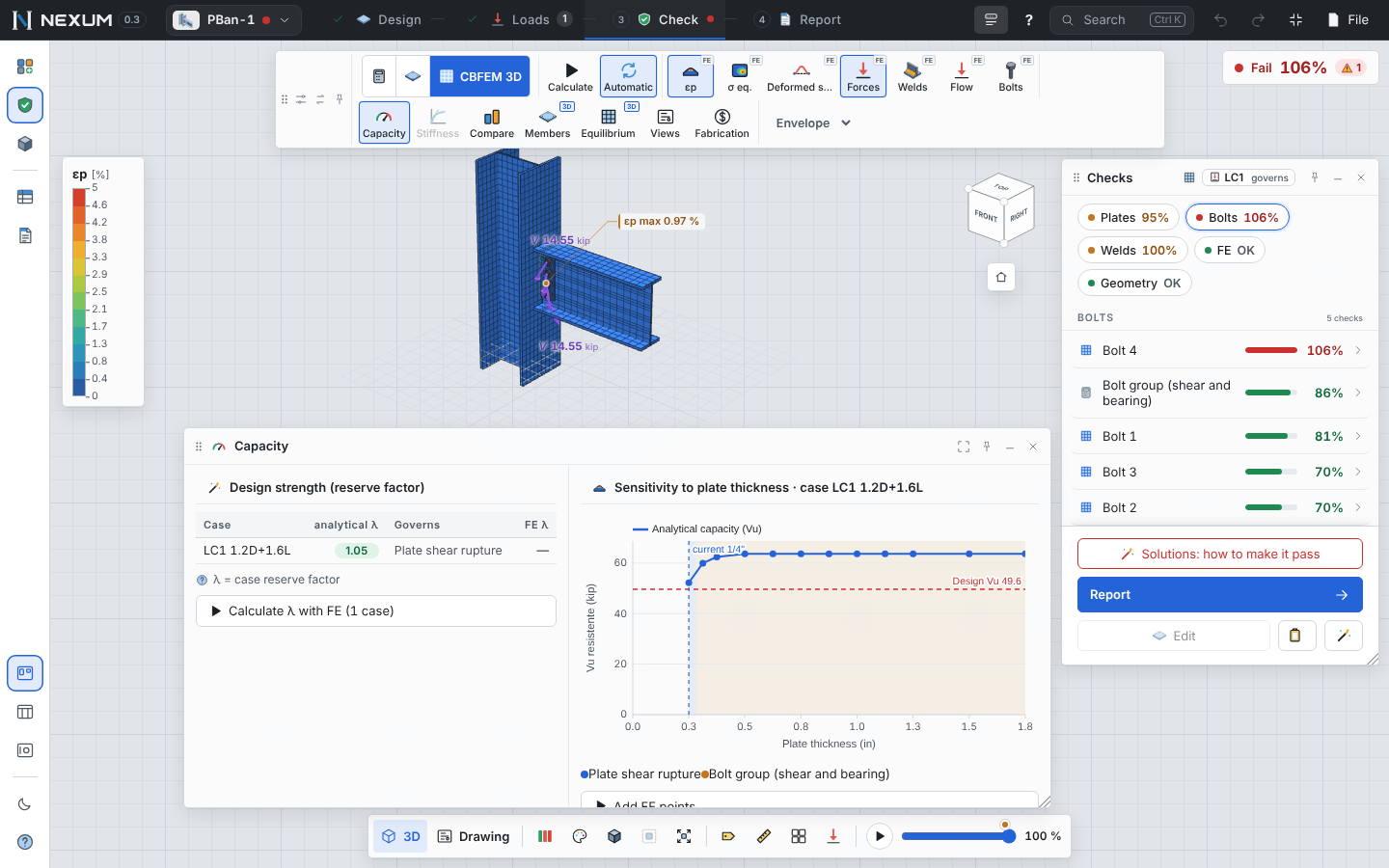
| Capacity | The reserve factor λ of each case (how far the case can be scaled before a check reaches 100%) and the capacity vs. plate thickness curve with the governing mode. |
| Stiffness | The M–φ curve, the initial stiffness Sj,ini and the classification per AISC 360 Commentary B3.4b (FR if Ks·L/EI ≥ 20, simple if ≤ 2), with a warning if it does not match how you modeled the joint. |
| Compare | Analytical vs. FE side by side, with an explanation of each difference (prying, the plastic bearing block of DG1, distribution by stiffness). Also two alternatives of the same connection with linked cameras. |
| Buckling | Linear buckling (6 modes) of the governing case with αcr against the IDEA limits for AISC. |
| Equilibrium | The force at each member end and the global sum (must be zero), with the model type of each member. |
| Views | Free body with ΣF/ΣM, breakout cones in tension and shear, unrolled weld. |
| Fabrication | Plates, bolts, holes and welds with kg and an estimated cost (unit prices editable). |
Fixing what fails#
Solutions opens when the connection does not pass (also from the wand, the check card, the piece view and Ctrl+K). Nexum tries small changes alone and combined — fillet, thickness, bolt grade, rows, two lines, 4E/4ES, continuity plates, doubler plate, ribs, anchors, embedment, pedestal, shear lug, flange plates — evaluates each one exactly as the app would build it, and sorts the ones that pass by cost.
The three best are then confirmed with the FE or CBFEM model. None is shown as passes without that confirmation: while it runs you see "passes analytically · confirming with CBFEM…", and only a confirmed one carries the recommended mark. Hover a solution to preview it dashed in 3D; Apply changes the data and Ctrl+Z undoes it.
When nothing in the search fixes a check, Solutions says which check stops it and what is outside the search (a larger shape, less load, anchor reinforcement…).