Getting started
Two ways to run Nexum#
| Web app | Windows desktop app | |
|---|---|---|
| Install | Nothing. Open it in Chrome, Edge or Firefox. | Run the Windows installer. |
| Files | Projects are saved as .json files you download and open again; the last session is also kept in the browser. | Projects open and save directly on your disk. |
| Calculation | The finite element model runs on your computer, in a background thread. | The same engine, in a desktop window. |
Both use the same engine and the same project files: a project saved in one opens in the other.
The analytical checks update instantly as you type. A CBFEM model takes from about one second (a shear tab) to several tens of seconds (a column with four beams and braces), and runs in the background while you keep working.
Free trial#
The first time you open Nexum on a computer you can start a 14-day free trial: File → License… → Start trial, enter your email, and the full program unlocks. No card is required. There is one trial per computer.
During the trial and afterwards, designing and calculating are always free. A license is needed only to export deliverables: the printed report, the DXF / SVG / PDF drawings and the bill of materials.
Activating a license#
When you buy a license the key arrives by email (it starts with STL-).
- Open File → License… (or press Ctrl+K and type license).
- Choose I have a key, paste it and press Activate.
- The panel shows the plan, the seats and the date until which this computer works without connecting.
Each license works on 2 computers. To move it to a new one, open File → License… → Release this computer on the old one first.
The activation is stored on the computer and works offline until the date shown; Nexum renews it by itself the next time it is online. If the subscription lapses, renew it and press I have a key again.
Your first five minutes#
- Nexum opens with an example project: a base plate, a shear tab, an end plate, a gusset plate and a double angle connection. Switch between them with the connection selector at the top left.
- Click the four stages at the top — Design, Loads, Check, Report — to see how a connection goes from geometry to report.
- Press ? to label every control on screen with its name and shortcut.
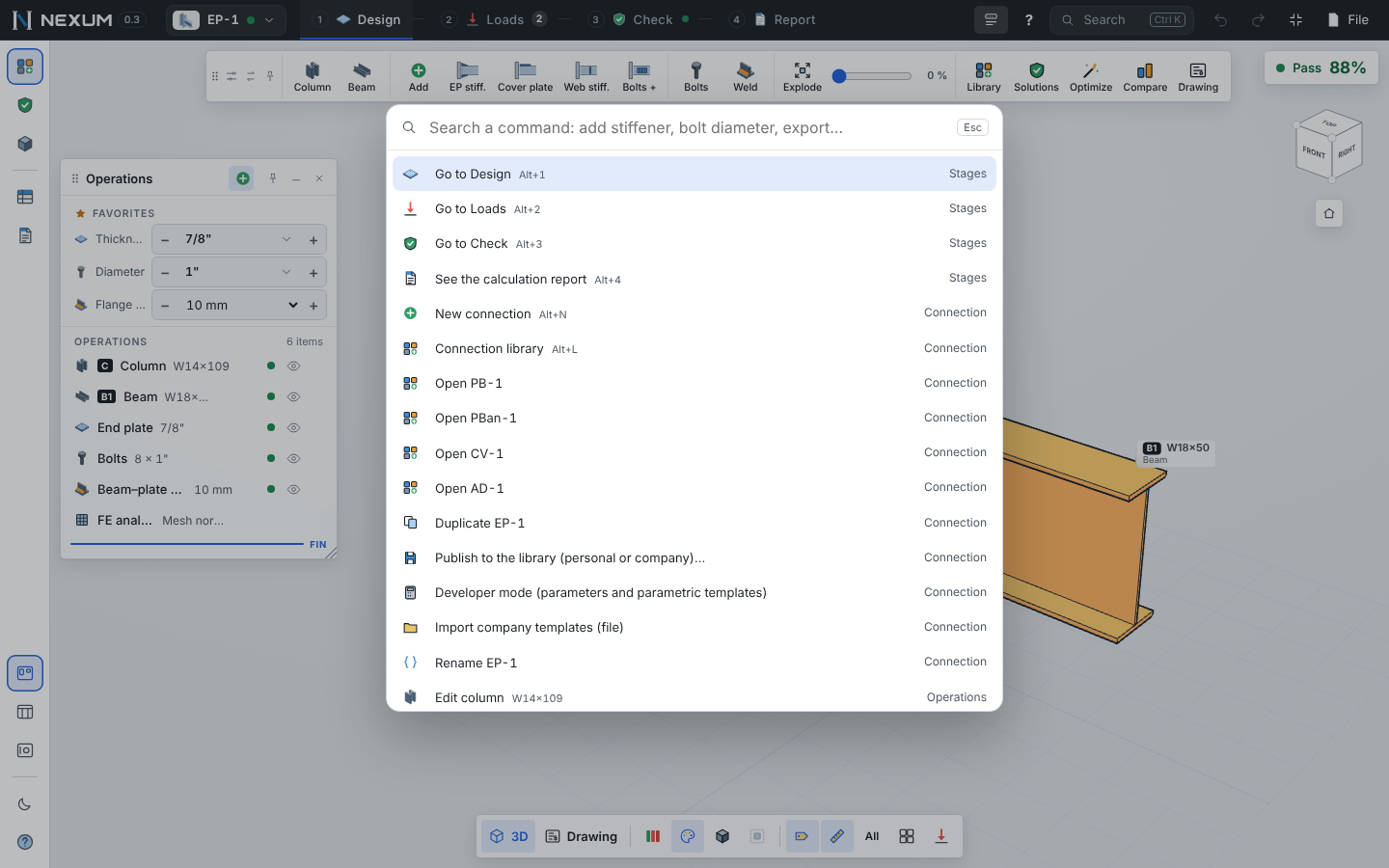
- Press Ctrl+K and type what you want to do ("add continuity plates", "bolt diameter", "export DXF"): the command palette finds it and tells you where it lives.
- When you are ready, follow Your first connection.
Language and units#
Nexum is available in English and Spanish, and shows results in US units (kip, in, ksi), SI (kN, mm, MPa) or Mexican practice (tonf, cm, kg/cm²) — or any mix of them. Open File → Settings… (Ctrl+,). See Settings and units.