The workspace
The 3D model fills the screen and everything else floats over it. One rule shapes the layout: one piece of data lives in one place, and the 3D model leads. You edit a plate where the plate is, read a result where its piece is, and the camera never moves unless you ask it to.
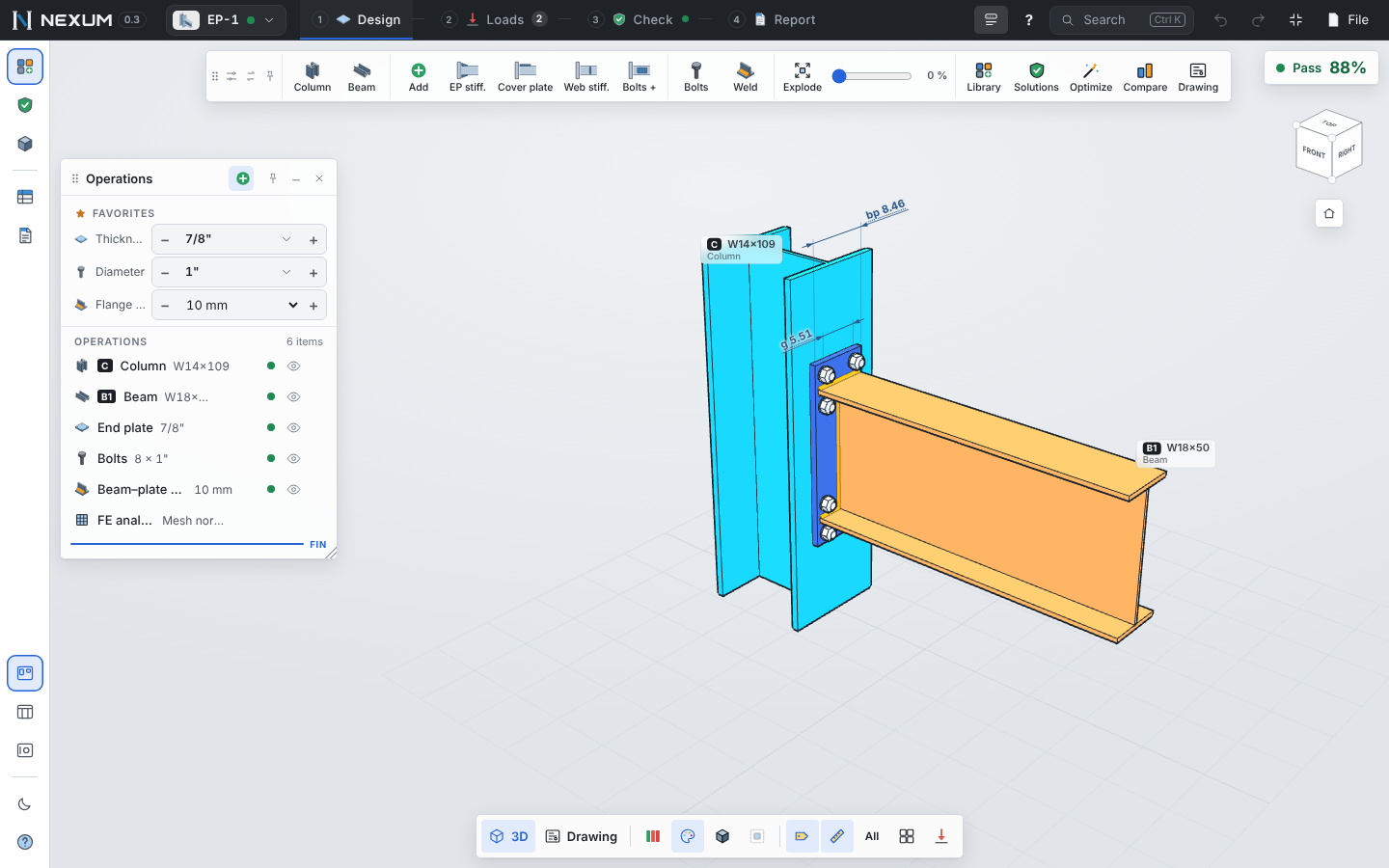
Top bar#
From left to right:
- Connection selector ▾ — the connections of the project with their utilization and whether their FE result is up to date. From here: New, Duplicate, Save to my templates, Delete, Rename, the project Dashboard, and the marks of the structure that use this connection (B-12, B-13…).
- The four stages — Design → Loads → Check → Report. A ✓ marks the stages already passed. Alt+1…4 jump between them.
- + New — a new connection (Alt+N).
- Toolbar on/off, ? (on-screen help), Search Ctrl+K, Undo / Redo, Hide interface (Ctrl+\) and File.
Toolbar#
One compact row of icons with the tools of the current stage. Hover for the name and shortcut, or press ? to see every label at once.
| Stage | Tools |
|---|---|
| Design | Members, add pieces (gallery), bolts, welds, library, solutions, optimize, compare, drawing |
| Loads | New case, duplicate, paste from Excel, combinations, seismic, case at a % of capacity, table, equilibrium, free body, sign convention |
| Check | Method (analytical / FE / CBFEM 3D), calculate (F5) and automatic, results (plastic strain, stress, deformed shape, forces, bolts, welds), studies (capacity, stiffness, compare, buckling), the load case |
| Report | Brief or detailed, formulas, print / PDF, DXF drawing, copy text, report of the whole project |
The toolbar is a window: drag it, dock it to a side (it turns vertical) or rotate it with ⇄.
Windows#
Five windows float over the model:
| Window | What it holds |
|---|---|
| Operations | The tree of the connection: members (C, B1, D1… — the same tags as in the model) and operations, each with its key value (W14×90, PL 3/4", 8 × 1"). Click one to edit it. |
| Checks | The result: filter chips by group (plates, bolts, welds, anchors, concrete…), the list what · bar · %, and the detail of each check. |
| Tools | Load table, checks table, bolts, welds, capacity, stiffness, compare, equilibrium, views, fabrication and messages. |
| View and selection | Solid / transparent / wireframe, color by piece or by status, isolate, dimensions, names, loads, explode, camera. |
| Toolbar | Above. |
Every window can be dragged by its ⋮⋮ handle. Drop it near the left or right edge — or on a column already docked there — and it docks as a column (several windows stack in one column). Elsewhere it floats. 📌 pins it, _ collapses it to its title bar (double-click the bar does the same), × closes it, and the corner resizes it. Floating windows never overlap each other.
Four layouts are one click away at the bottom of the left rail: Free canvas (translucent floating windows), Docked (CAD-style fixed columns), Focus (vertical toolbar, collapsed windows) and Mine (appears as soon as you move anything; it is remembered).
One thing at a time#
Each stage opens what it needs and hides the rest:
- Design — Operations, dimensions and names.
- Loads — the load table and the force arrows.
- Check — the Checks window, without dimensions.
While you edit an operation, the Checks window steps aside; the live effect of your change is shown in the edit panel itself.
Status widget#
At the top right, one widget tells you where the connection stands: Pass / Review / Fail with the utilization of what governs, the FE progress, and ⚠ with the number of warnings. Before the FE model has run, the dot is hollow and the widget says analytical: the verdict is provisional and may change when the FE model runs. Hover it (or click to keep it open) to see the source and load case, the four checks that govern — click one to open it — and the warnings with their fix. Nothing else on screen repeats the global percentage.
One color scale is used everywhere: green passes, orange above 95%, red above 100%. Gray means not calculated or does not apply.
The 3D model#
- View cube (top right): click a face for an orthogonal view, a corner for that corner's view; drag the cube to rotate the model as if you held it; the arrows around it rotate 15° (arrow keys too when the canvas has focus; Shift = 5°). The house returns to the start view.
- Mouse: left-drag rotates, right-drag pans, the wheel (or middle-drag) zooms.
- Dimensions that are linked to data are capsules: click to type a value, drag to change it live. In orthographic views they are drawn like a drawing: continuous dimension line, filled arrows, text along the line.
- Forces and loads are vectors with their symbol, value and unit; moments are arcs in their plane of rotation.
- Weld symbols (AWS A2.4) appear in orthographic views, pointing to a visible part of each weld.
The halo#
Right-click a piece (or press and hold on a touch screen) to open its halo: eight actions in fixed positions — Edit, Weld, Bolts, Add piece, Hide, Isolate, Connect to…, Checks — with the piece name and status in the center. Double-click a piece to open its piece view with only that part and its checks.
Selected piece bar#
Select a piece and a small bar appears beside it — never over it — with its name, its utilization and its two or three key values, editable in place, plus Edit · Isolate · Hide · Pin.
On a phone or tablet#
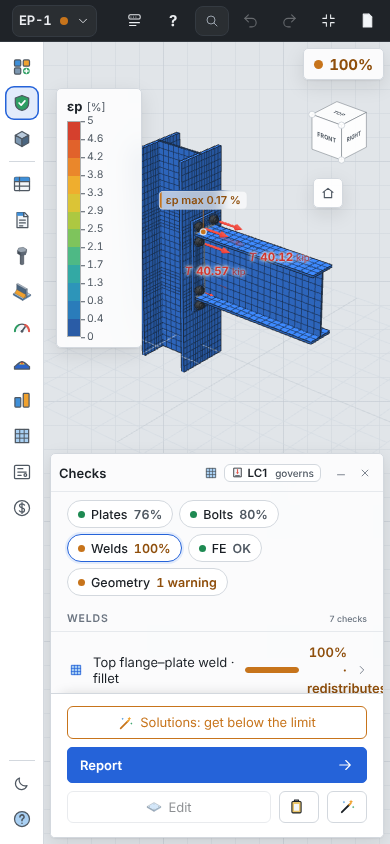
Below 760 px wide the windows become sheets at the bottom of the screen and the toolbar a strip at the top. Everything works the same; dragging and layouts are turned off.
Shortcuts#
See Shortcuts and FAQ for the complete list. The ones you will use every day: Ctrl+K search, Alt+N new connection, Enter / Esc accept or cancel an edit, F5 calculate, Ctrl+Z / Ctrl+Y undo / redo, ? on-screen help.